 WebMail


Clean your PC Guide | Expert Laptop Repair Service in Essex
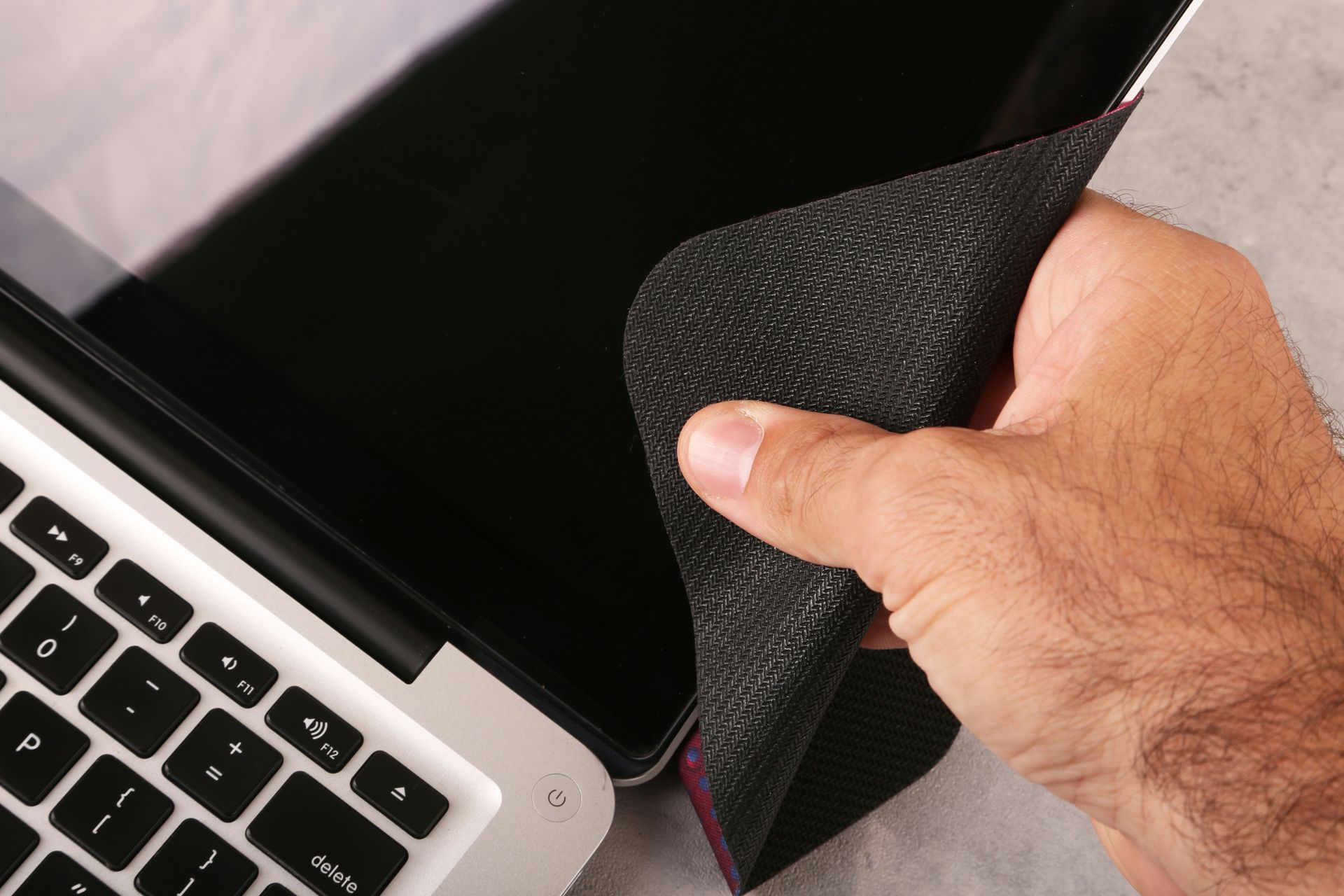
Wondering how often you should clean your computer? you are not alone At PC ReFix, we've heard this question countless times from concerned users and it's a valid concern.
In this guide, we discuss the factors that affect cleaning frequency, as well as the symptoms that may indicate your computer needs cleaning.
Let's begin the journey of maintaining a clean and efficient PC.
How often should you clean your computer?
In general, it is recommended that you clean your computer every so often.
Three to six months. However, several factors can affect the optimal cleaning frequency, including the environment in which your computer operates, how often you use it, and where it is kept.
Factors Affecting Cleaning Frequency
The frequency at which you should clean your computer depends on several factors:
- Environment: If your computer is placed in a dusty or humid environment, it will accumulate dust more quickly, requiring frequent cleaning.
- Frequency of use:
PCs that are used daily or for long periods of time tend to collect dust and dirt more quickly than computers that are used less often. - PC placement:
PCs placed on the floor or near vents can attract more dust and require more frequent cleaning than those placed on clean, elevated surfaces.
Regular inspections can help you determine when it's time to clean your computer. Watch for visible dust accumulation on external surfaces and components, as well as signs of overheating or reduced performance.
Signs that your computer needs to be cleaned.
You can see visible dust accumulation.
One of the most obvious signs that your computer needs cleaning is the accumulation of visible dust. Dust can collect on external surfaces, such as case vents and fan grills, as well as internal components such as CPU coolers and graphics cards.
Your computer is overheating.
Excessive dust accumulation can block airflow inside your computer, causing overheating problems. If you notice that your computer is running hotter than usual or if the fans are working harder to maintain the temperature, this could be a sign that dust is blocking airflow and Cooling efficiency is hindered.
PC performance is poor.
Dust accumulation can also affect your computer's performance. Components like the CPU and GPU rely on efficient cooling to maintain optimal performance. When airflow is restricted due to dust accumulation, these components can throttle their performance to prevent overheating, resulting in a decrease in overall performance.
Regularly monitoring your computer for these symptoms and addressing them promptly can help prevent potential hardware damage and maintain optimal performance.
Tips for cleaning your computer
Maintaining a clean PC is essential to ensure optimal performance and prolong its life.
Before cleaning your computer, make sure it's powered off and unplugged. Follow the step by step process for
Remove dust from fansheatsinks and other components.
To effectively clean your computer, you'll need a few basic tools:
- Compressed air canister for blowing dust from hard-to-reach areas.
- Soft-bristled brush to gently remove dust from fan blades and heatsinks.
- Microfiber cloth to clean surfaces and remove remaining dust particles.
- Isopropyl alcohol to remove stubborn stains or residue.
Step-by-step cleaning process
- Open the PC case. Remove the side panels of your PC case to access internal components.
- Use compressed air.
Carefully blow compressed air to remove dust from fans, heatsinks, and other components. Hold the fan in place to prevent uncontrolled rotation. - Clean the dust. Use a soft-bristled brush to gently remove dust from fan blades, heatsinks, and other components.
- Clean the surfaces below.
Use a microfiber cloth dampened with isopropyl alcohol to clean the surfaces and remove any remaining dust particles. - Reconnect the PC.
After cleaning is complete, reconnect the PC and make sure all components are securely in place.
Maintaining a clean PC is essential to ensure optimal performance and prolong its life. By following the guidelines outlined in this post and cleaning your computer regularly, you can prevent dust build-up, reduce overheating issues, and maintain optimal performance.
Remember to tailor your cleaning frequency to your specific environment and usage habits, and always take proper precautions to avoid damaging sensitive components.
Looking for help in Essex?
Are you looking for professional help or support?
PC Repair in Essex? We are your trusted computer repair specialists, serving the Essex area with the highest level of service and expertise.
Whether you're experiencing hardware issues, software glitches, or just need a thorough cleanup, our team is here to help.
Contact us today to schedule an appointment. And get your computer running smoothly again!


